
Download Archiver – Easy, Secure, and Fast Compression Tool for macOS
Overview
Archiver (formerly known as Rucksack) is a lightweight, drag‑and‑drop compression utility designed specifically for macOS users who want a no‑fuss solution for creating, extracting, and splitting archive files. Unlike heavyweight competitors such as WinRAR or StuffIt, Archiver focuses on a clean interface, automatic format detection, and built‑in encryption, making it ideal for both casual users and power users who need to send large files securely. The application supports the most common archive formats—RAR, 7‑Zip, ZIP, Gzip, Bzip2, Tar, DMG, and the classic StuffIt (SIT, SEA)—and now includes a preview pane so you can inspect archive contents before extracting. Recent updates have added bulk extraction, optional deletion of source archives after extraction, and Growl notifications, ensuring the tool stays relevant in a crowded market. Whether you’re compressing a folder for email, splitting a multi‑gigabyte video for cloud upload, or protecting sensitive documents with a password, Archiver offers a seamless, macOS‑native experience.
Key Features
- Drag‑and‑Drop Simplicity: Just drop files onto the Archiver window and let the app automatically select the optimal format.
- Multi‑Format Support: Handles RAR, 7‑Zip, ZIP, Gzip, Bzip2, Tar, DMG, and StuffIt (SIT, SEA) archives.
- Secure Encryption: Password‑protect archives with AES‑256 encryption for maximum data safety.
- File Splitting & Merging: Split large archives into custom-sized chunks for easy email or cloud sharing.
- Preview Pane: View the contents of an archive before extracting, preventing accidental overwrites.
- Bulk Extraction: Select multiple archives and extract them in a single operation.
- Post‑Extraction Options: Automatically delete source archives or reveal extracted files in Finder.
- Growl Notifications: Receive real‑time alerts for completed compressions, extractions, and errors.
- Bug‑Free Performance: Recent updates fix crashes when handling very large files or spaces in installation paths.
Installation & Usage Instructions
Step‑by‑Step Installation
Downloading and installing Archiver is straightforward. Visit the official website, click the “Download for macOS” button, and the installer package (.dmg) will begin downloading. Open the .dmg file, drag the Archiver icon into your Applications folder, and launch the app. macOS may prompt you to confirm that you trust the developer; simply click “Open” to proceed.
Creating an Archive
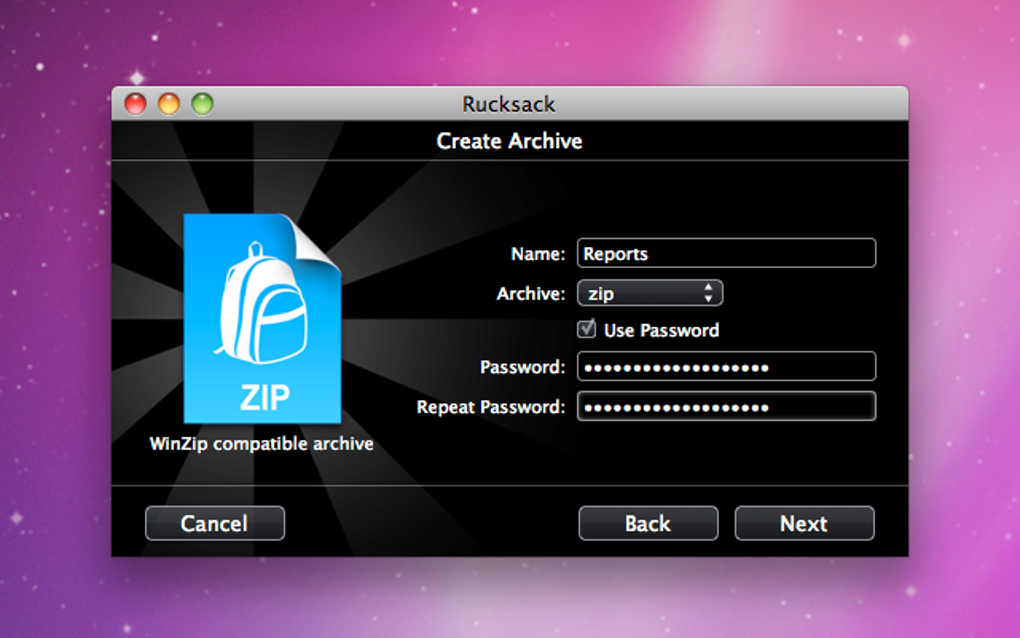
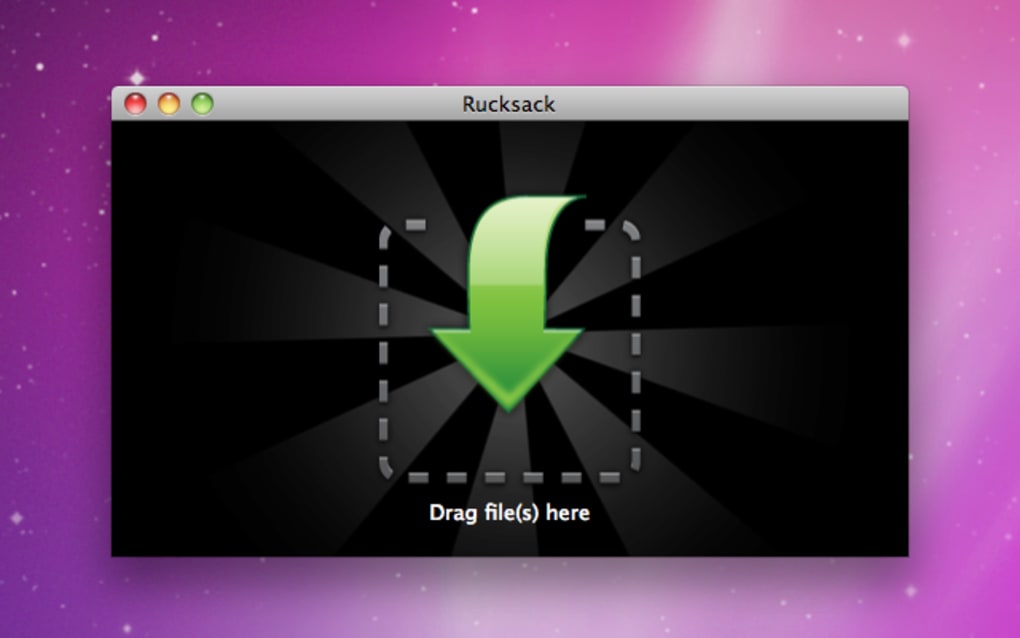
To compress files, open Archiver and drag the desired files or folders onto the main window. The application automatically detects the best compression format based on file type and size. If you prefer a specific format, click the “Settings” gear icon and choose from the dropdown menu (ZIP, RAR, 7‑Zip, etc.). For added security, enable the “Password Protect” toggle and enter a strong password; Archiver will encrypt the archive using AES‑256.
Extracting and Splitting
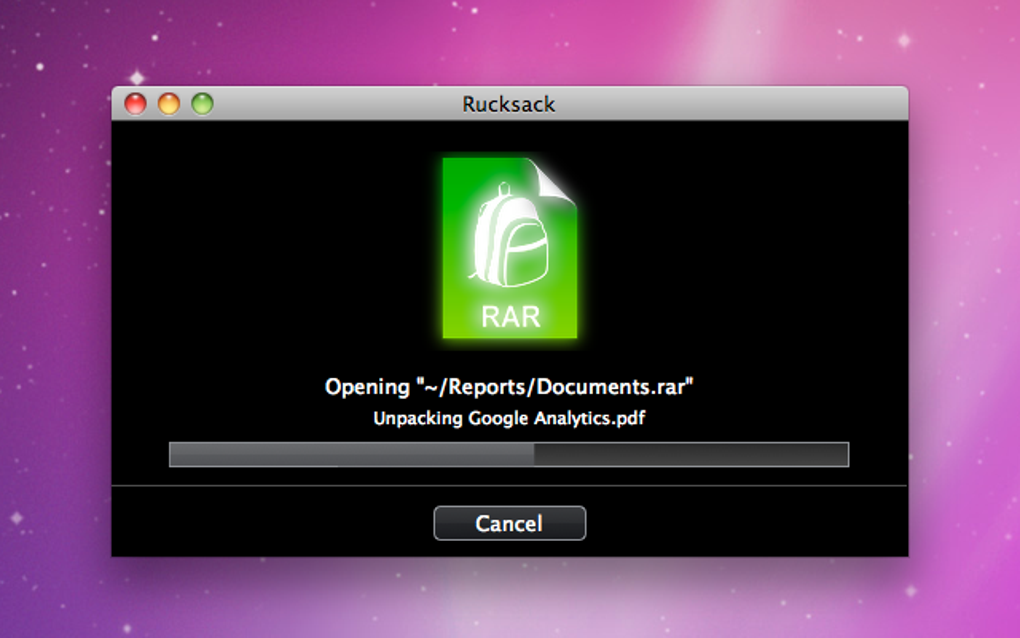
Extraction works the same way—drag an archive onto the Archiver window, and the contents will appear in the preview pane. Click “Extract” and choose a destination folder. For batch extraction, select multiple archives (using Shift or Cmd) and press the “Extract All” button; the new options let you automatically delete the source archives after extraction if desired. Splitting is handled by clicking the “Split” button, entering the desired chunk size (e.g., 700 MB for CD‑level splits), and Archiver will generate sequential parts ready for distribution.
Troubleshooting Tips
If you encounter a crash while handling very large files, ensure you are running the latest version (the update notes indicate fixes for large‑file crashes). Also, avoid installing Archiver in a folder path that contains spaces, as older builds had issues with such locations. Should any error messages appear, the built‑in Growl notifications will give a brief description, and you can consult the FAQ section below for common resolutions.
Compatibility, Pros & Cons
Supported Operating Systems: macOS 10.13 (High Sierra) and later. The app runs natively on Intel and Apple Silicon (M1/M2) Macs, providing smooth performance on both architectures.
Pros
- Intuitive drag‑and‑drop interface reduces learning curve.
- Strong AES‑256 encryption for password‑protected archives.
- Built‑in preview eliminates the need to extract just to view files.
- Bulk extraction and automatic post‑extraction cleanup save time.
- Lightweight footprint; consumes minimal RAM and CPU.
Cons
- Lacks right‑click context‑menu integration with Finder.
- Does not support every niche format (e.g., ISO, RAR5).
- No native Windows or Linux version—macOS‑only.
- Advanced compression settings (e.g., dictionary size) are limited.
Overall Rating: 4.5 / 5
Frequently Asked Questions
Can Archiver encrypt archives with a password?
Yes. Archiver offers AES‑256 encryption. Simply enable the “Password Protect” option when creating an archive and enter a strong password. The encrypted file can only be opened with the correct password.
Is there a limit to the size of files I can split?
Archiver can split files up to several gigabytes. The only limitation is the available disk space for the resulting parts. You can define custom chunk sizes, such as 700 MB for CD‑compatible splits or larger sizes for modern cloud storage.
Does Archiver work on Apple Silicon Macs?
Yes. The latest build includes native support for both Intel and Apple Silicon (M1/M2) architectures, delivering fast compression and extraction without the need for Rosetta 2 translation.
Can I extract multiple archives at once?
Absolutely. The “Extract Multiple Archives” feature lets you select several archive files, choose a destination, and process them in a single operation. You can also enable the option to delete the source archives automatically after extraction.
Is there a free trial or a paid version?
Archiver offers a free trial with full feature access for 14 days. After the trial, you can purchase a license for $19.99 (single‑user) which includes lifetime updates and priority support.
Conclusion & Call to Action
Archiver stands out in the macOS compression landscape by combining a minimalist drag‑and‑drop workflow with powerful security features and the ability to split large files. While it could benefit from deeper Finder integration and broader format support, its recent updates have addressed the most critical pain points—bulk extraction, post‑extraction cleanup, and crash fixes. For anyone who needs a reliable, secure, and fast way to compress or split files without learning a complex interface, Archiver is a solid choice.
Download Archiver now and experience hassle‑free archiving on your Mac. Take advantage of the 14‑day free trial, protect your sensitive data with encryption, and enjoy seamless splitting for large attachments. Upgrade to the full version whenever you’re ready to unlock lifetime updates and priority support.







